Logging in & navigation
Accessing the application
The Mantis web application is accessed through a subdomain provided to you when your account is created:
Signing in
Navigate to your subdomain URL. You will be presented with the sign-in screen.
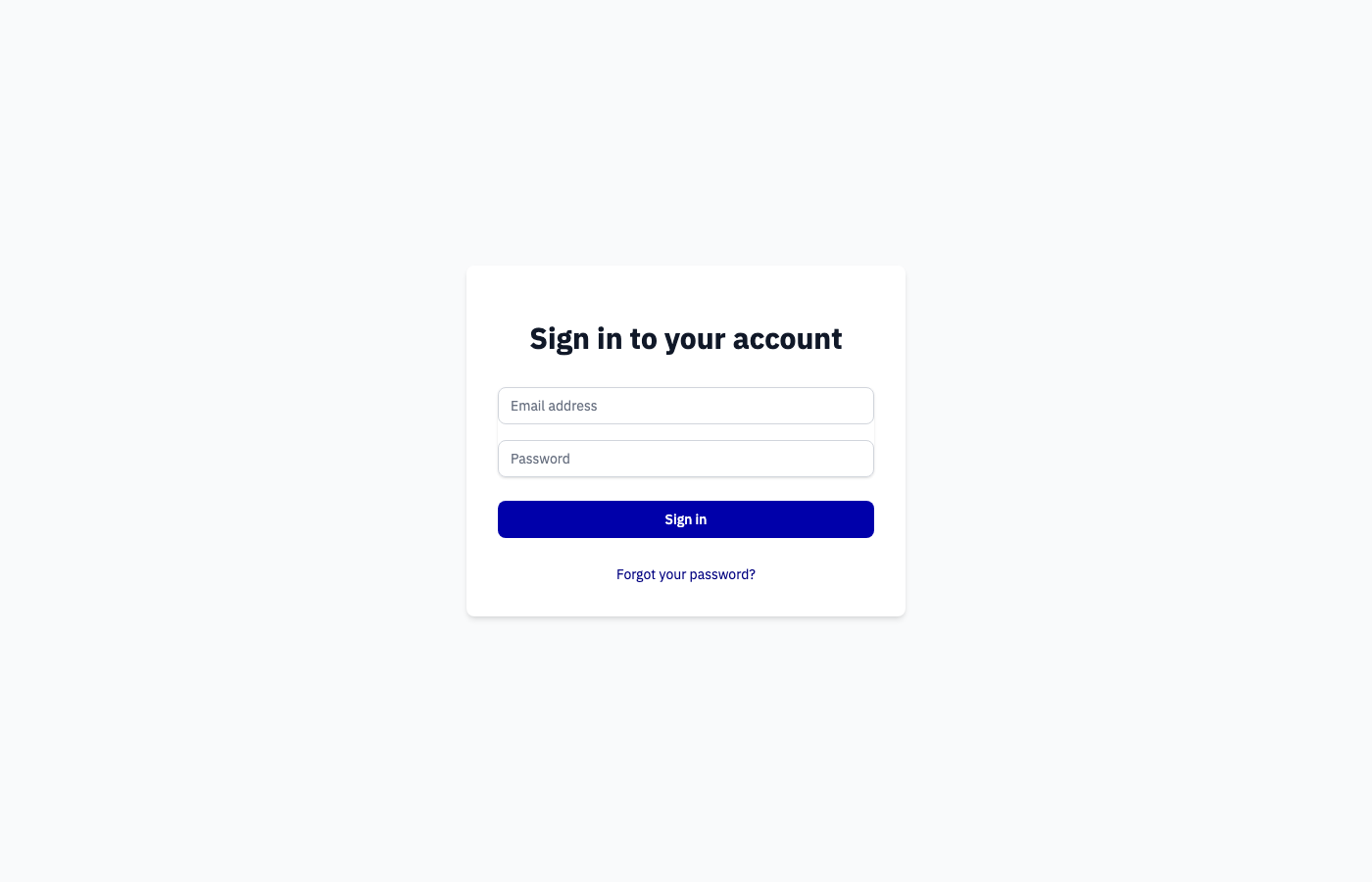
Enter your email address and password, then click Sign in.
Multi-factor authentication
If MFA is enabled on your account you will be prompted for a six-digit code from your authenticator app after submitting your credentials.
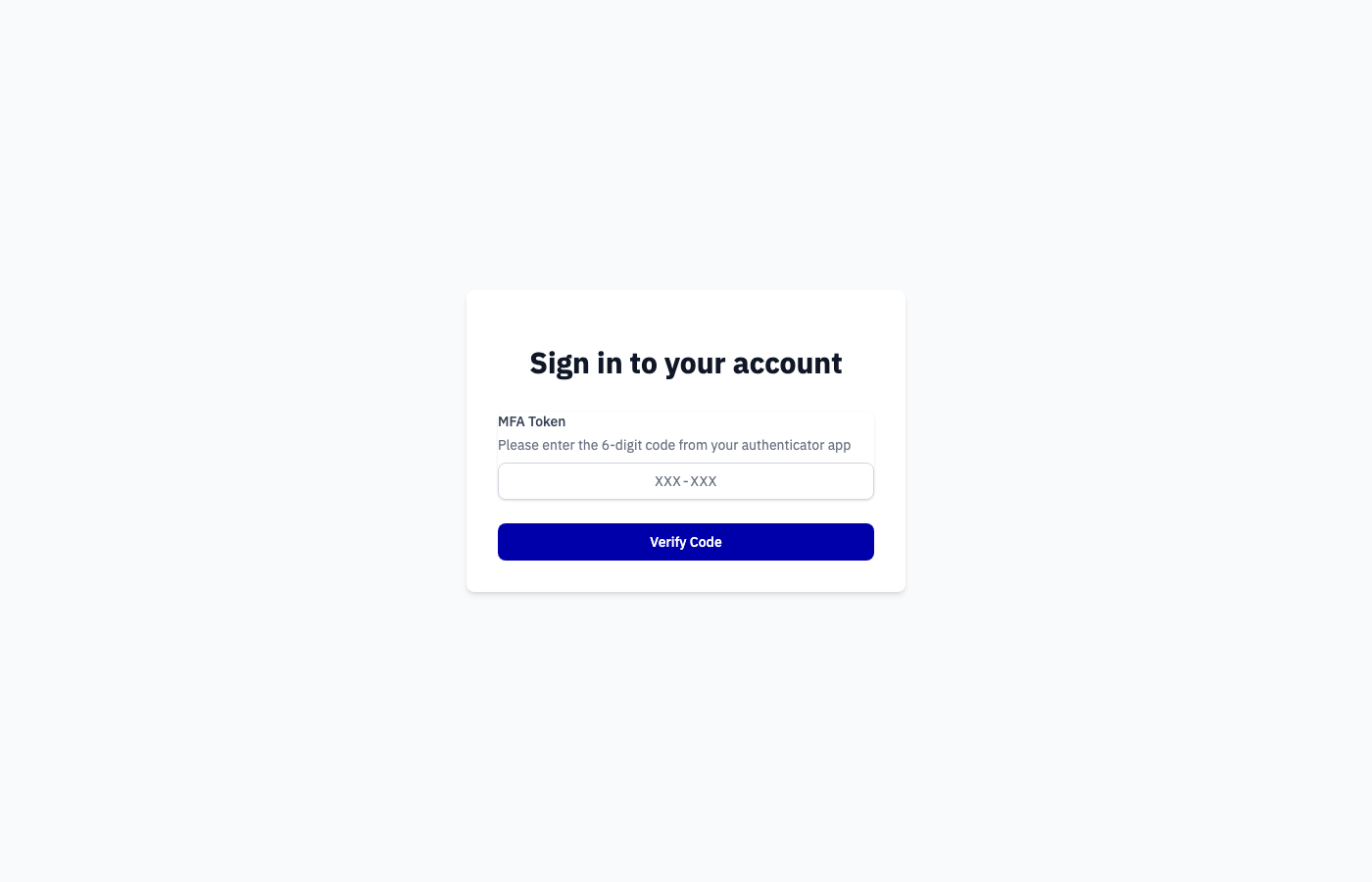
Enter the code and click Verify Code.
Password reset
If you forget your password, click Forgot your password? on the sign-in page.
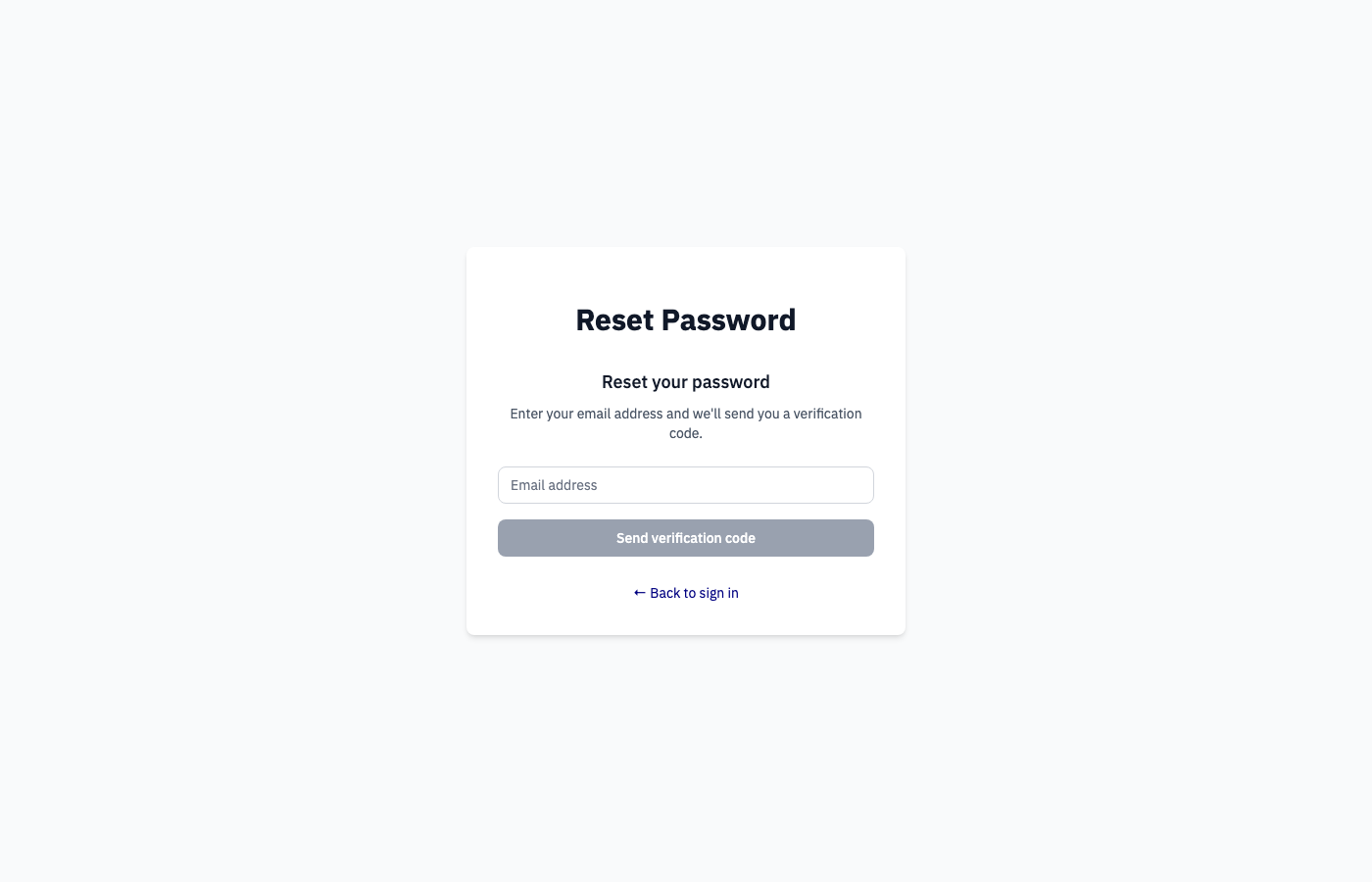
Enter your email address and click Send verification code. Check your inbox (and spam folder) for a message from auth@sanda.mantis-geophysics.io containing a time-limited verification code. Enter that code along with your new password to complete the reset.
Note
Verification codes expire after 10 minutes.
Navigation bar
Once signed in, the navigation bar is visible at the top of every page.

| Element | Description |
|---|---|
| Mantis logo | Returns you to the projects list |
| Select project | Opens the projects list so you can activate a project |
| Current Project: [name] | Appears when a project is active; shows the project name |
| Data Files | Opens the data file upload and management area |
| Account | Dropdown with links to Documentation, API Rate Usage, and Log Out |
When a project is active, the name is shown alongside the Select project button:

Account menu
Click Account to open the account dropdown:
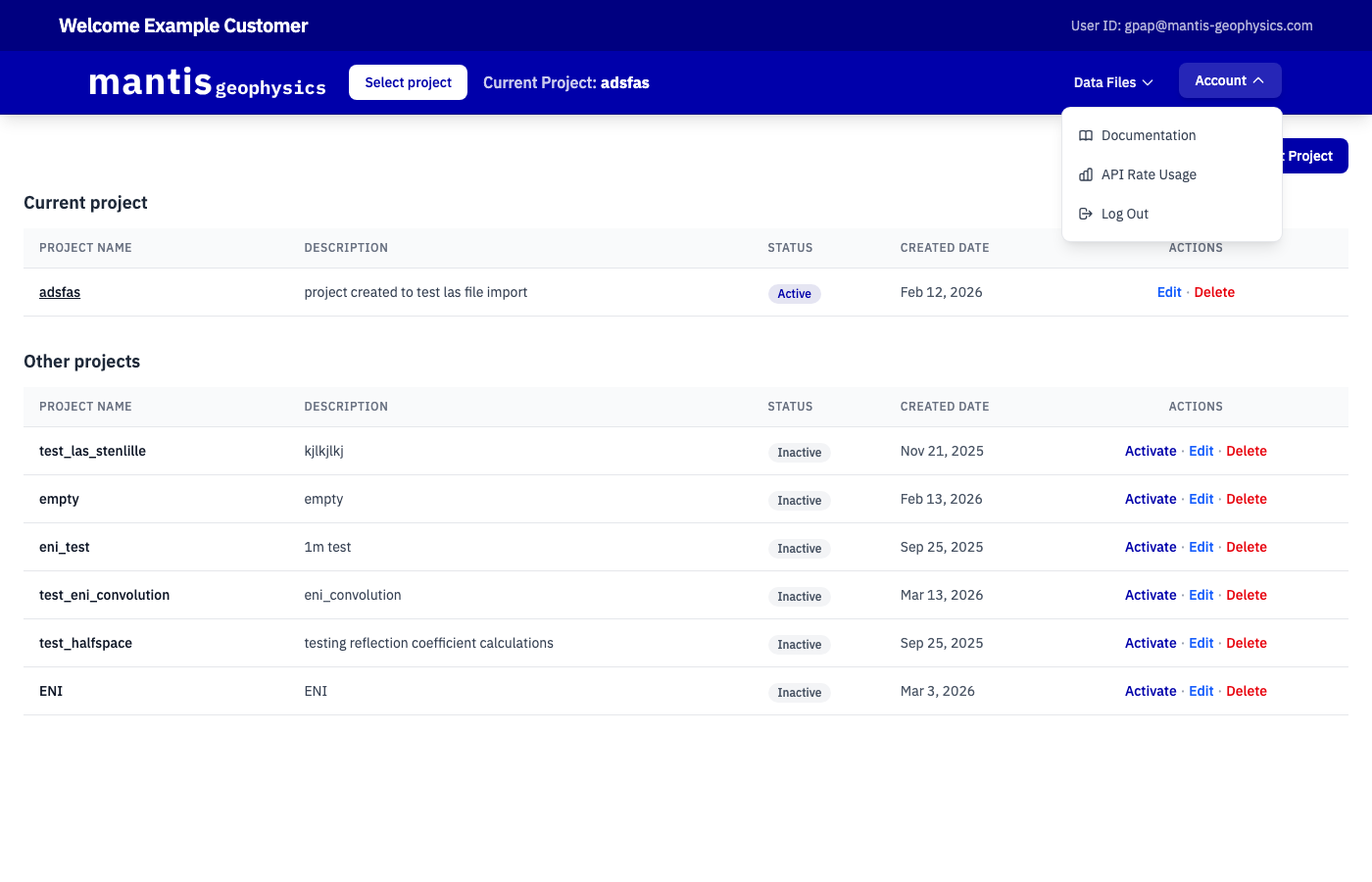
| Option | Description |
|---|---|
| Documentation | Opens this documentation site |
| API Rate Usage | Shows your current API usage against your rate plan limits |
| Log Out | Signs you out and returns you to the login page |
Data Files
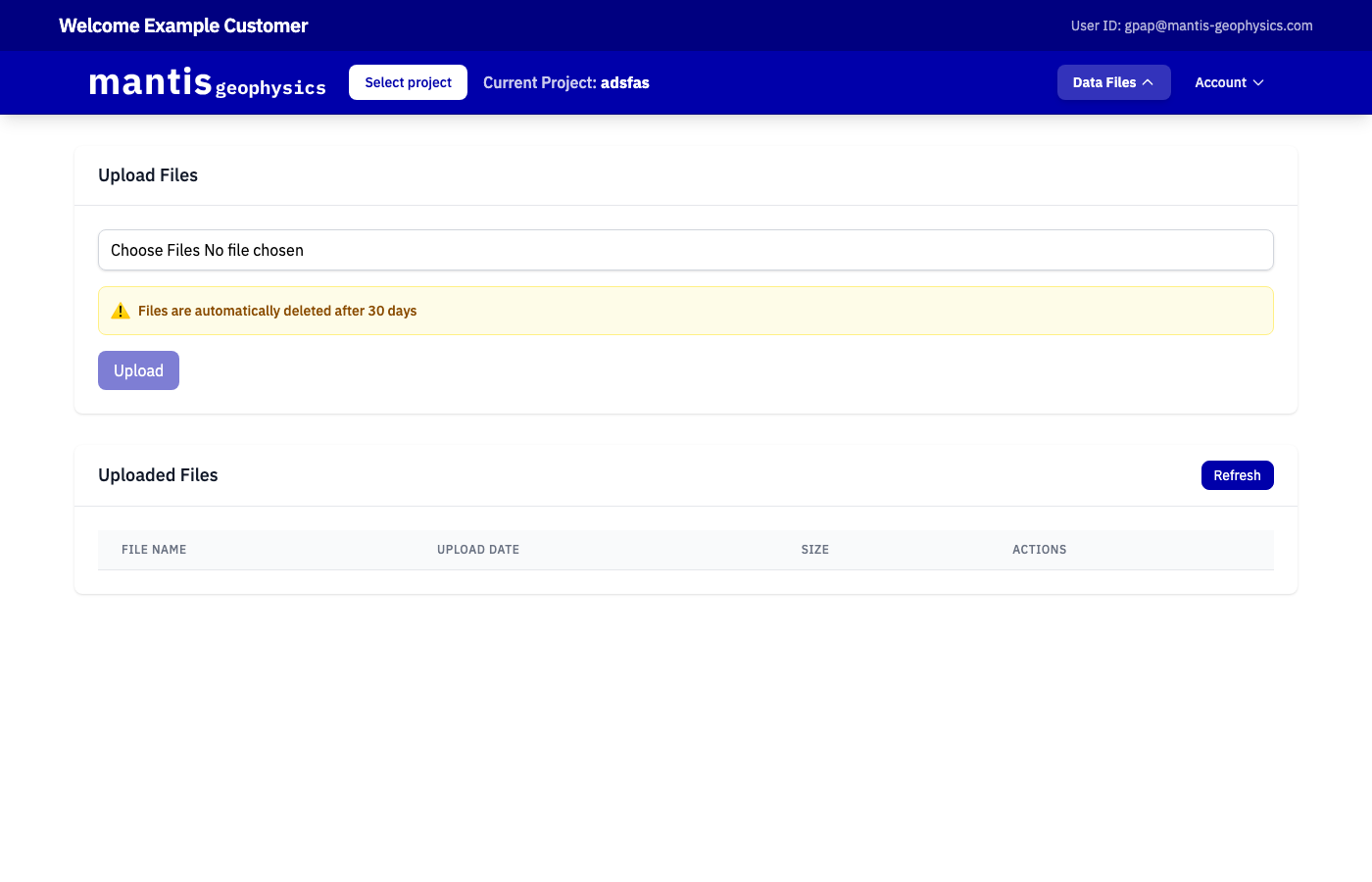
Click Data Files in the navigation bar to manage files stored in your account. Files can be uploaded here and referenced when creating projects via CSV import.
Warning
Uploaded files are automatically deleted after 30 days.
To upload a file, click Choose Files, select the file from your computer, and click Upload. Previously uploaded files are listed in the Uploaded Files table with their upload date and size. Each file can be downloaded or deleted using the action buttons.